Can’t Log In to Instagram: Real Fixes for Errors, 2FA, and Account Lockouts
Can’t log in to Instagram and scared you’ll lose your account for good? This 2025 step-by-step guide shows real fixes for errors, 2FA, and account lockouts.

Ida Reverie
Dec 16, 2025
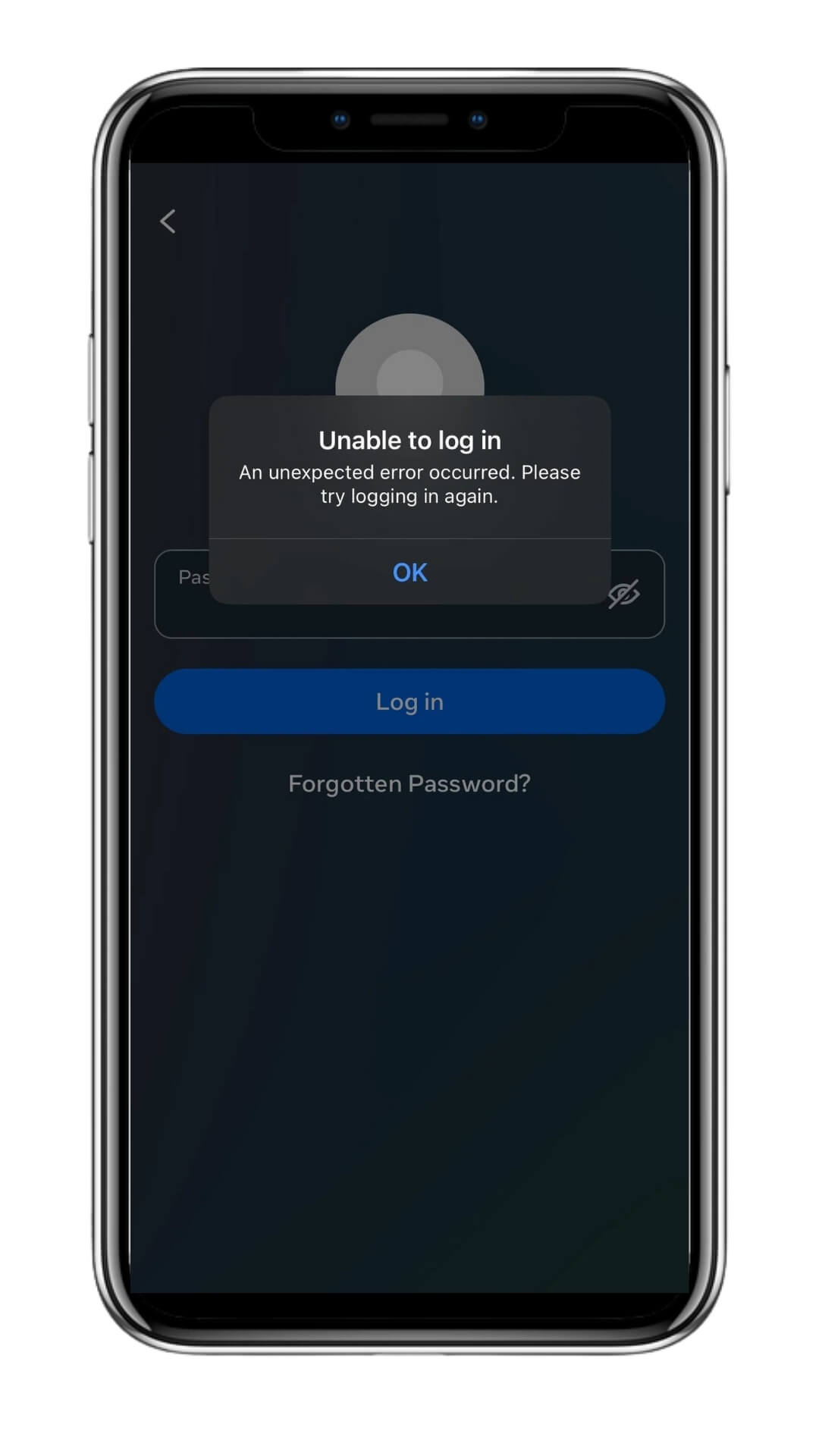
You tap Log In.
Instagram thinks for a second.
And then… error.
You try again.
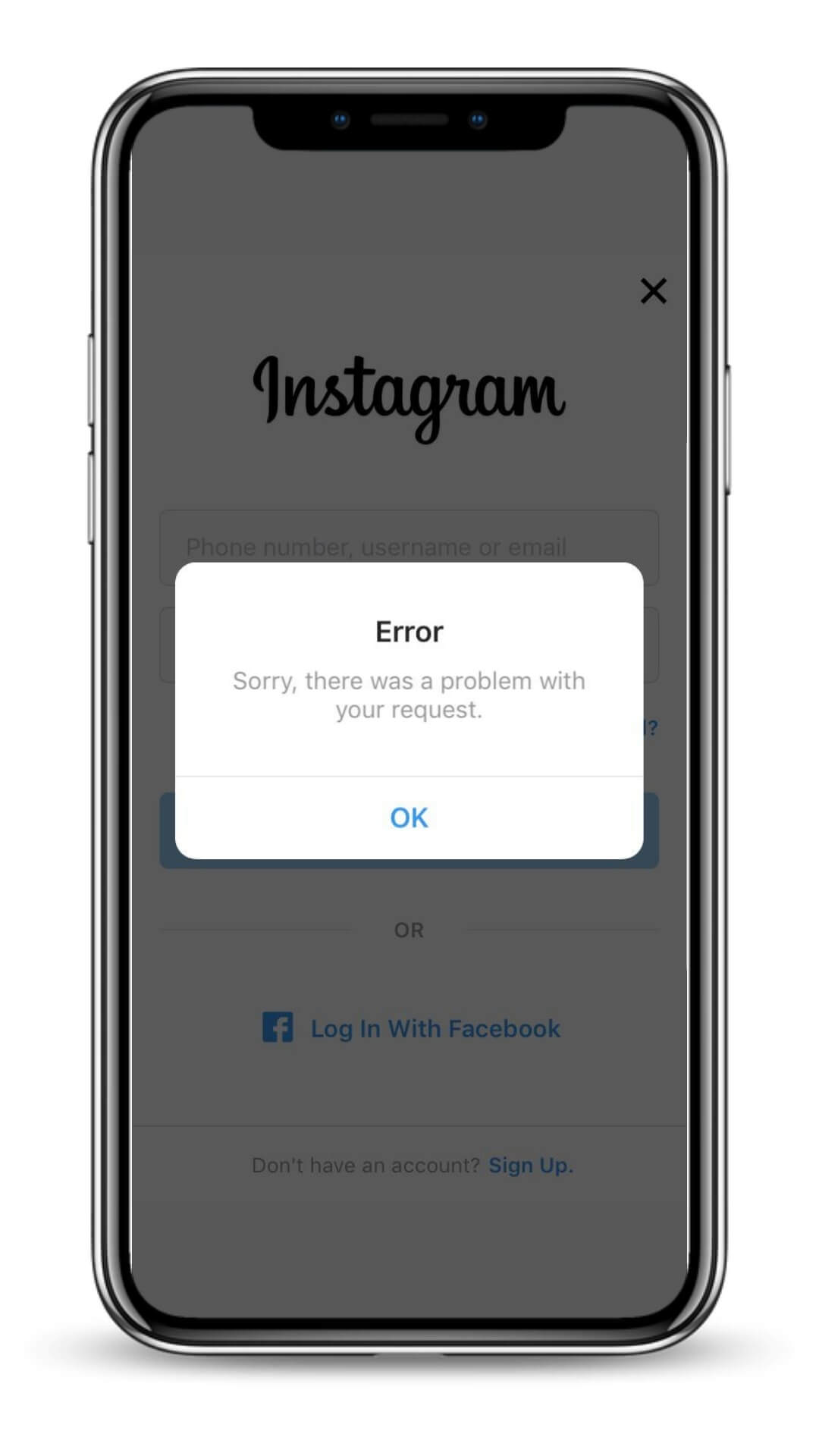
Now it’s “Sorry, there was a problem with your request.”
Or “We detected unusual activity.”
Or the app just kicks you out like nothing happened.
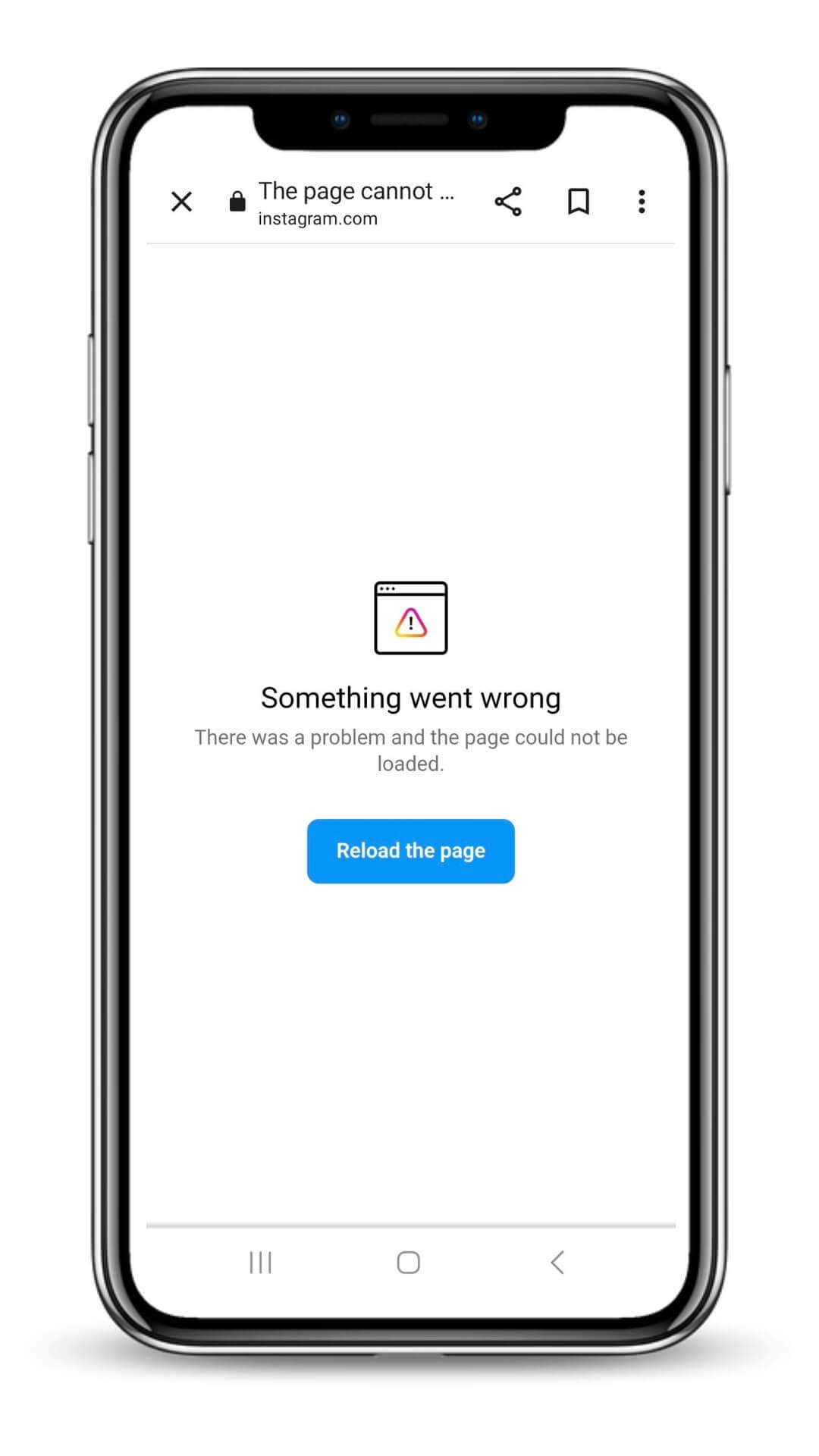
Meanwhile, your desktop login works, but the app refuses you.
Or you’re stuck in 2FA hell.
Or Instagram says your account has been disabled and offers you one sad little “Learn More” link.
Most guides will tell you:
“Restart your phone. Reinstall the app. Check your Wi-Fi.”
That’s… the bare minimum.
If you’re here, you already tried that.
This guide is different. I’m going to treat your situation like a real account problem, not a random app glitch — especially if you’re a creator or business owner whose income depends on that login button.
CONTENT INDEX

Step 0 – 60-Second Triage: Which Situation Are You In?
Before we go deep, let’s quickly sort you into a bucket. Pick the one that matches you best:
“There was a problem logging you in”
“Sorry, there was a problem with your request”
“Please try again later”
Instagram says your password is wrong
Even though you’re pretty sure it’s correct
Maybe this started after you changed your password
You can log in on desktop, but not on the app
Browser works fine
App logs you out or throws error or loops forever
Codes / email / 2FA are broken
No code arriving
Don’t have access to that email/phone anymore
Stuck on “enter security code”
Instagram says your account is disabled / unusual activity / banned
“Your account has been disabled for violating our terms”
“We detected unusual activity”
Suddenly logged out and can’t get back in
Instagram keeps logging you out or acting “possessed”
You can log in, but it kicks you out constantly
Sessions won’t stay active
👉 Find your bucket, then use the sections below. You can always come back and switch if the behavior changes.
Step 1 – Generic Errors: “There Was a Problem Logging You In”
Let’s start with the vague, unhelpful ones:
“There was a problem logging you in”
“Sorry, there was a problem with your request”
“An unknown network error occurred”
“Try again later”
These messages are catch-all. They can mean:
Temporary server issues
Network or app cache issues
Security filters blocking you
Or, yes, sometimes something more serious
1.1 Quick checks (the boring but necessary part)
Do this once, not 27 times:
Check if Instagram is actually down
Search “Instagram down” on Google or X/Twitter. Or visit Downdetector for Instagram.
If tons of users are screaming → it’s not just you. Wait it out.
Test another app or website on the same device
If everything is slow/broken → your internet, not Instagram.
If everything else works → keep going.
Switch network
From Wi-Fi → mobile data
Or mobile data → Wi-Fi
Sometimes Instagram is weird with certain IP ranges, VPNs, office networks, etc.
Force close and reopen the app, then log out fully if possible
On iOS/Android: swipe away the app
If you can still get into some part of your account, log out manually, then try again
Update the app
Go to App Store / Google Play
If there’s an update, install it. IG pushes tons of silent fixes this way.
If after all of that you still see generic errors, stop repeating those same steps. That’s where everyone gets stuck.
Now we go deeper.
1.2 If the error appears before you even enter your password
If Instagram errors as soon as you open the app or tap Log In, it’s often:
Corrupted app data / cache
A buggy version of the app
Device security/OS issues
Try this sequence:
Clear Instagram cache (Android):
Settings → Apps → Instagram → Storage → Clear cache (and if needed, Clear data).
Reinstall the app completely (iOS & Android):
Delete, restart phone, reinstall.
Try logging in using the browser on the same phone (Safari, Chrome)
If browser login works but the app still doesn’t → your issue is almost certainly app/device-specific. (Skip to “Step 3 – Desktop works, app doesn’t.”)
1.3 If the error appears after entering correct login details
This is where it might be more than “just a glitch.”
Patterns to watch:
Error shows after you type correct username/password
You’ve logged in from new devices or locations recently
You use automation tools / bots / growth apps
You’ve had a lot of log in/log out attempts in a short time
In those cases, Instagram may be:
Blocking your login attempt due to security suspicion
Throttling requests from your IP/device
Soft-locking your account
Move on to:
Step 3 – You Can Log In on Desktop, But Not the App (The 2025 Spike)
This is the one I see more and more recently:
“I can log into Instagram on my computer,
but the app on my phone just won’t let me in.”
This drives people insane because it feels random. The good news?
If desktop still works, your account is not dead. That’s huge.
Typical reasons:
Buggy app update on iOS or Android
Device-specific conflict (OS version, WebView problems, storage)
App-side security being stricter than web login
Something about your phone’s network / VPN / security profile
3.1 First: Use desktop to secure and stabilize
Before you touch the app again, do this from desktop (or any device that does work):
Confirm it’s really you everywhere
Go to Settings → Security → Login activity
Check devices & locations. Remove anything you don’t recognize.
Change your password from desktop
Use a strong, unique password.
Turn on Two-Factor Authentication (if not already)
Prefer an authenticator app over SMS.
Confirm your email and phone number are up to date
So you’re not locked out later.
You want Instagram to see consistent, legit activity from desktop while we fix the app side.
3.2 Clean reinstall and “safe login” on mobile
Now on your phone:
Log out of Instagram everywhere on that device (if partially logged in).
Delete the app.
Restart your phone.
Check time & date settings – set to automatic. Sometimes off-by-a-lot system clocks break logins.
Turn off VPN or weird DNS if you’re using one.
Reinstall Instagram from the official store.
Then:
Try logging in once using the same network you used on desktop (so it looks consistent).
If it fails, switch network (Wi-Fi ↔︎ mobile data) and try once more.
If the app still refuses you but desktop is fine, you’re likely dealing with:
A device-specific bug (often fixed in a later update), or
A soft security filter on that device/IP combination
In practice:
Keep using desktop to manage your account and check back after major app updates. Annoying? Yes. But it’s better than panicking about losing the account.
Step 4 – Codes, Email, Phone and 2FA Hell
This is where people really start to lose it:
“Instagram isn’t sending me a login code.”
“I don’t have that phone number anymore.”
“I turned on two-factor and now I’ve locked myself out.”
4.1 If codes or emails aren’t arriving
Try this:
Check spam / junk / promotions folders for Instagram emails.
Wait at least a few minutes before requesting another code. Spamming requests can rate-limit you.
If it’s SMS:
Make sure the SIM is active and has signal.
Turn off Wi-Fi calling / VPN temporarily (some carriers are weird).
Try a different device and different browser when asking for codes.
If you’ve tried all of that and codes never arrive, and you know the email/phone is correct, that’s often:
Instagram’s spam/risk filters
Your email provider/carrier silently killing those messages
4.2 If you can’t access your email or phone anymore
This is one of the most searched pain points:
“How do I log in to Instagram without access to my email or phone number?”
Reality check: this is very hard. There are only a few angles:
Use any device where you’re still logged in
Old phone, another browser, another app.
If you can get in anywhere, immediately:
Change email to one you control now.
Change phone number.
Turn on 2FA with updated info.
Use linked Facebook / Meta account
If your IG is connected to Facebook, sometimes you can log in via Facebook or use it to reset access.
Recovery forms / Help Center flows
Use the in-app “Get help logging in” if possible.
Some flows ask you to upload a selfie video or hold a code on paper.
No, there is no magical “DM support and they’ll fix it in 2 minutes” route. If you’ve lost access to both your email and your phone, and you’re not logged in anywhere, your odds go down a lot.
4.3 Two-Factor Authentication (2FA) is blocking you
If you:
Enabled 2FA with SMS or an app, and
Can’t get the code now
Then your lifelines are:
Backup codes – if you saved them, this is their moment.
Old device – if the authenticator app is still accessible somewhere.
Old SIM card – if you can temporarily reactivate it just to receive SMS.
If none of those exist, you’re often stuck in a hard lock. You can still try:
Instagram’s “I can’t access this email/phone” or “Trouble logging in?” flows.
But be honest with yourself: this is exactly why you should treat 2FA setup like bank-level security and not skip the backup steps.
Harsh take:
A lot of people don’t lose their accounts to hackers. They lose them to their own poor recovery setup.
Step 5 – Disabled, Banned, “Unusual Activity” and Appeals
If your screen says something like:
“Your account has been disabled for violating our terms.”
“We’ve detected unusual activity on your account.”
“We’ve suspended your account.”
That’s not a bug. That’s Instagram making a decision about you, often via automation.
5.1 Is it a temporary lock or a real disable?
Signs it may be temporary / security lock:
Message mentions “unusual activity” or “suspicious login attempts.”
You’re prompted to confirm your identity (code, email, selfie, etc.).
Sometimes it unlocks after 24–48 hours if you verify successfully.
Signs it may be a full disable / ban:
Message explicitly says your account has been disabled.
The email from IG mentions policy violations, community guidelines, or terms of use.
Your profile doesn’t appear when others search for it.
5.2 Why accounts get disabled (even if “I did nothing wrong”)
Common triggers:
Using third-party apps or bots for followers/likes
Aggressive follow/unfollow patterns
Posting content that hits community guideline filters
Too many accounts on one device/IP doing sketchy stuff
Repeatedly ignoring warnings
You might feel innocent, but to Instagram’s systems, your pattern looked risky.
5.3 How to appeal a disabled account (when you can’t log in)
You’ll usually see a link like “Learn More” or “Disagree with decision”.
Go through the process and submit the appeal.
Click here to learn what to look out for when submitting your appeal.
Be prepared for:
No reply or slow reply.
Automated rejections.
If your account is not re-enabled within 24 hours, then you need to make use of advanced strategies to recover the account. Click here for the Ultimate Instagram Account Recovery Guide.
Step 6 – Instagram Keeps Logging You Out or Behaving “Possessed”
This one is subtle but important. Symptoms:
You log in, and it logs you out shortly after
You keep getting asked to confirm it’s you
Sessions don’t stick between devices
Possible reasons:
Someone else has your password.
You’re using automation tools that break session rules.
Instagram’s security is trying to kick suspicious logins.
6.1 Do this immediately if you suspect weird logouts
From a trusted device (preferably desktop), change your password.
Log out of all devices:
Settings → Security → Log out everywhere / log out of other sessions.
Revoke access for any third-party apps you don’t recognize or fully trust.
If logouts stop after that, it was likely either:
Another person logging in, or
A third-party app messing with your sessions.
If it keeps happening, and you see “unusual activity” messages, move back to Step 5 and treat it like a potential soft restriction or early warning. Your account may be hacked. Click here to learn more about recovering a hacked Instagram account.
Step 7 – If You’re a Creator or Business, This Is a Revenue Risk, Not Just an Error
If you run a shop, coaching business, agency, or creator account, “can’t log in to Instagram” is not a small bug. It’s a business continuity issue.
Here’s how to handle it like a pro, not a panicked user.
7.1 First 60 minutes of lockout
If you still have desktop or another device access:
Post a Story:
“We’re having login issues on mobile — if we don’t reply to DMs quickly, use [email/website/other channel].”
Pin a post or update your bio with alternative contact info.
Export or copy key contact info if you haven’t already:
Brand partners
Clients
Important DMs
If you’re totally locked out:
Immediately switch to your backup channels:
Email list
TikTok, YouTube, X, Facebook, LinkedIn
Website banner/message
Tell your audience:
What’s happening
Where they can reach you in the meantime
That any “new account” DMs claiming to be you are likely fake
7.2 The next 24–72 hours
Try recovery/appeal flows once properly. Don’t spam.
Document everything (screenshots, timestamps).
If you run ads or have a Business Manager, see if any Meta support routes are available there.
Decide your Plan B:
Step 8 – Long-Term Instagram Login Safety Checklist (Do This Now)
Even if you’ve fixed your issue today, future you will thank you for this.
Save or print this list:
Turn on Two-Factor Authentication (authenticator app preferred)
Generate backup codes and store them in a secure place
Make sure you control the email and phone number on the account
Add a second admin or account manager for business/creator accounts via Meta Business tools
Stop using sketchy growth tools, follow/unfollow bots, or auto-DM services
Avoid logging in from random devices, public Wi-Fi, or unknown VPN endpoints
Regularly review Login Activity and third-party app permissions
Build at least one other channel where your audience can find you (email, another social platform, website)
Make your login setup boring, predictable, and safe. The more “normal” your behavior looks to Instagram, the less likely you are to trigger locks, checkpoints, and bans.
Step 9 – FAQ: Quick Answers to Common Instagram Login Questions
Q: Why can’t I log in to Instagram on Wi-Fi, but it works on mobile data?
A: Your Wi-Fi IP or network might be flagged or misconfigured. Try restarting the router, turning off VPN, or using a different Wi-Fi network. If only one network fails, it’s usually a network issue, not your account.
Q: Why does Instagram say “no users found” when I try to log in?
A: That can mean:
You mistyped your username
Your account was renamed
Your account might be disabled or deleted
Try logging in with your email or phone instead of username. Ask a friend to search your profile — if they can’t find it, it may be disabled.
Q: Why did Instagram suddenly log me out and now I can’t log in?
A: That often means:
Password was changed (by you or someone else)
Instagram detected suspicious activity
The account was disabled
Check for emails from Instagram and follow the steps in Step 5 above.
Q: How do I fix the “checkpoint required” message?
A: That’s a security check. Instagram wants you to verify it’s really you:
Follow the on-screen steps (code, email, SMS, selfie verification)
Use a familiar device and location
Turn off VPNs while doing it
If the checkpoint keeps looping, stop spamming attempts. Switch to a known, trusted device and try again after a few hours.
Q: Is it safe to use third-party apps for followers, unfollows, or auto-DMs?
A: If an app logs into your account and performs actions on your behalf, it can absolutely get you flagged or disabled. If Instagram login is business-critical for you, those tools are not worth the risk.
Final Takeaway
Most “can’t log in to Instagram” advice treats you like a casual user who just needs to restart their phone.
But if you’re reading this far, you’re not that user.
You’re either:
A creator worried about losing years of content and followers
A business owner who runs marketing through Instagram
Or someone who just really doesn’t want their account to vanish into Meta’s black box
Here’s the mindset shift:
Don’t just ask, “How do I log back in?”
Also ask, “How do I make sure that next time, this doesn’t threaten my whole online life?”
Now I’m curious:
Which scenario are you stuck in right now — generic errors, desktop vs app, codes, or disabled?
If this were a comment section, which one would you type: A, B, C, D, E, or F?
That’s where your story — and the real solution — starts.